What it does
Five things make up a trestle board: the page it sits on, the words, the lists that come back every month, the photographs, and the PDF at the end. Here is each of them.
The page
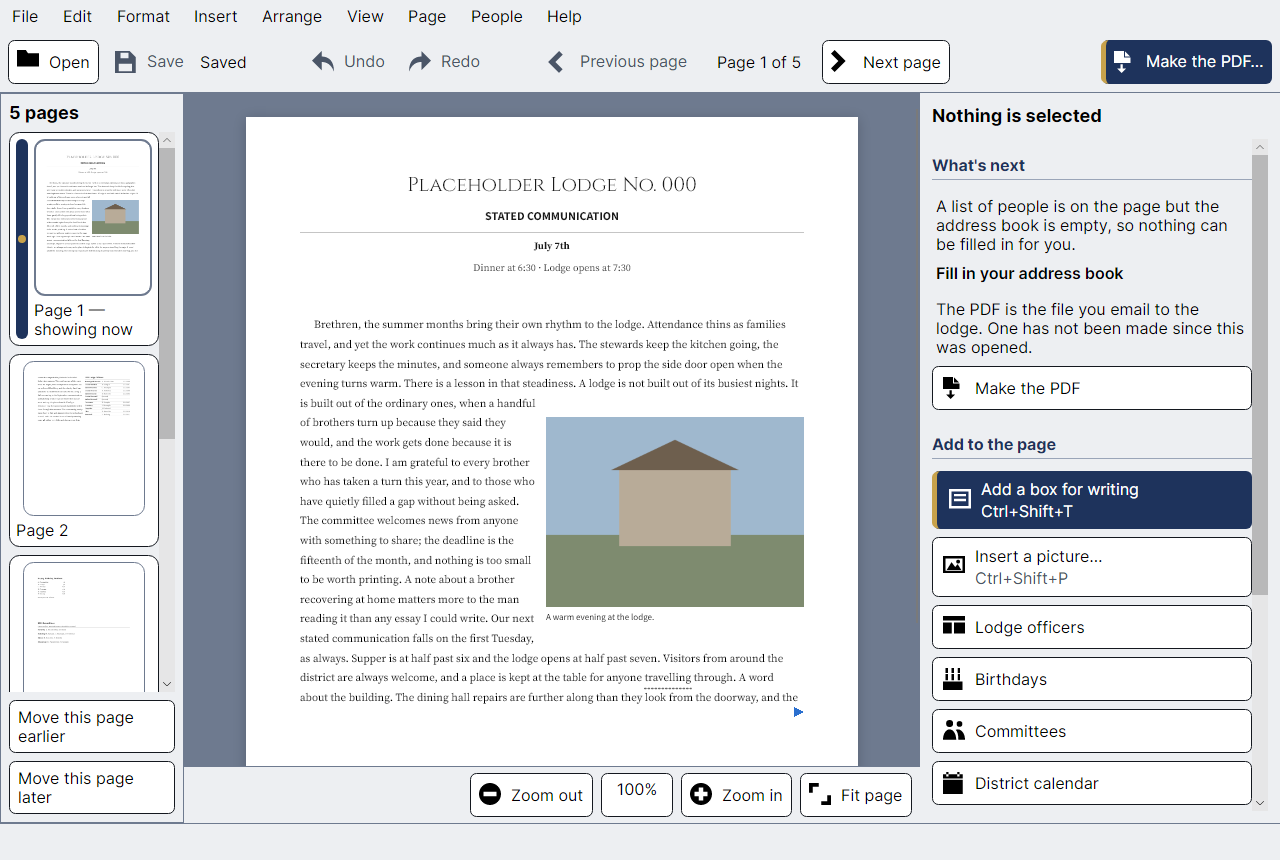
Blocks go anywhere, and the body text flows around them. This is the whole reason the program draws its own pages instead of borrowing a word processor's: a photograph dropped into the middle of an article pushes the words aside, and they close up again behind it when you move it away.
The words
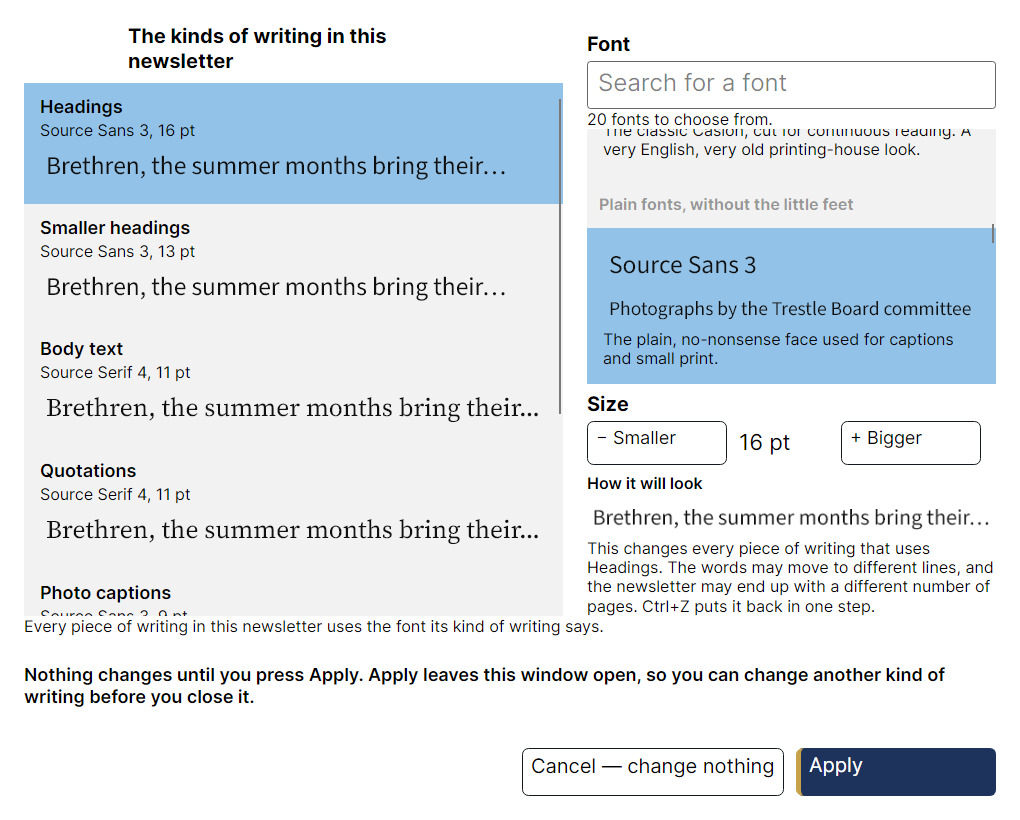
Click into any box and type. Everything can be undone — including the things most programs will not let you take back, such as moving a photograph, replacing a whole list, or changing the typeface of the entire newsletter.
Choosing a typeface shows you the typeface rather than a list of names, and every sample is drawn by the same engine that will draw the PDF. Twenty families ship inside the program.
The lists that come back every month
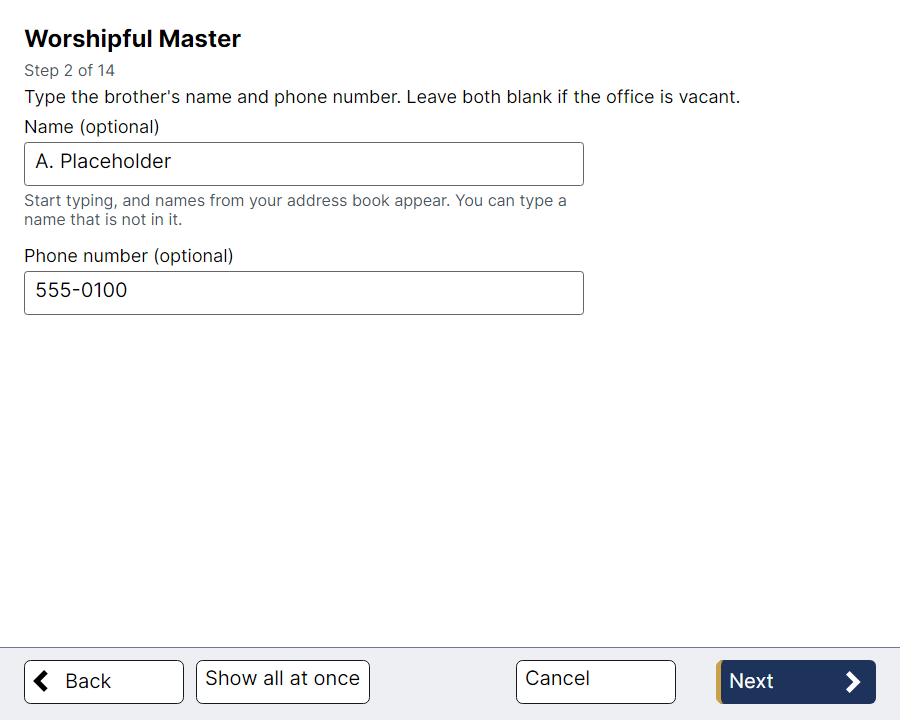
The officers table, the birthday list, the committees and the district calendar are not typed as tables. They are filled in by a wizard that asks one question per screen, in large type, and lays the answers out for you.
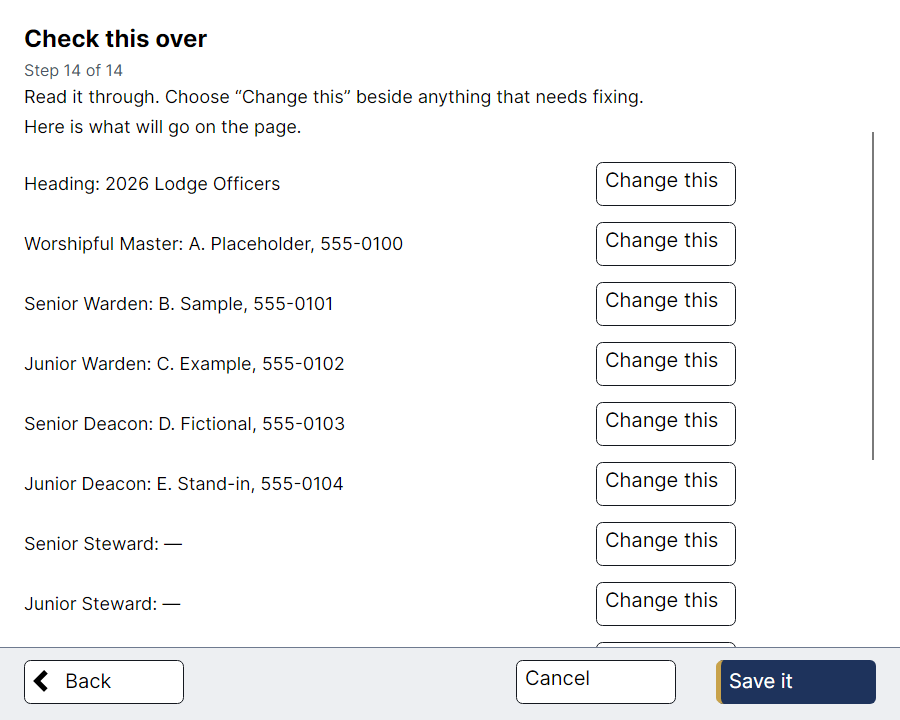
Every wizard ends by reading back what it is about to write, so nothing lands on the page unseen.
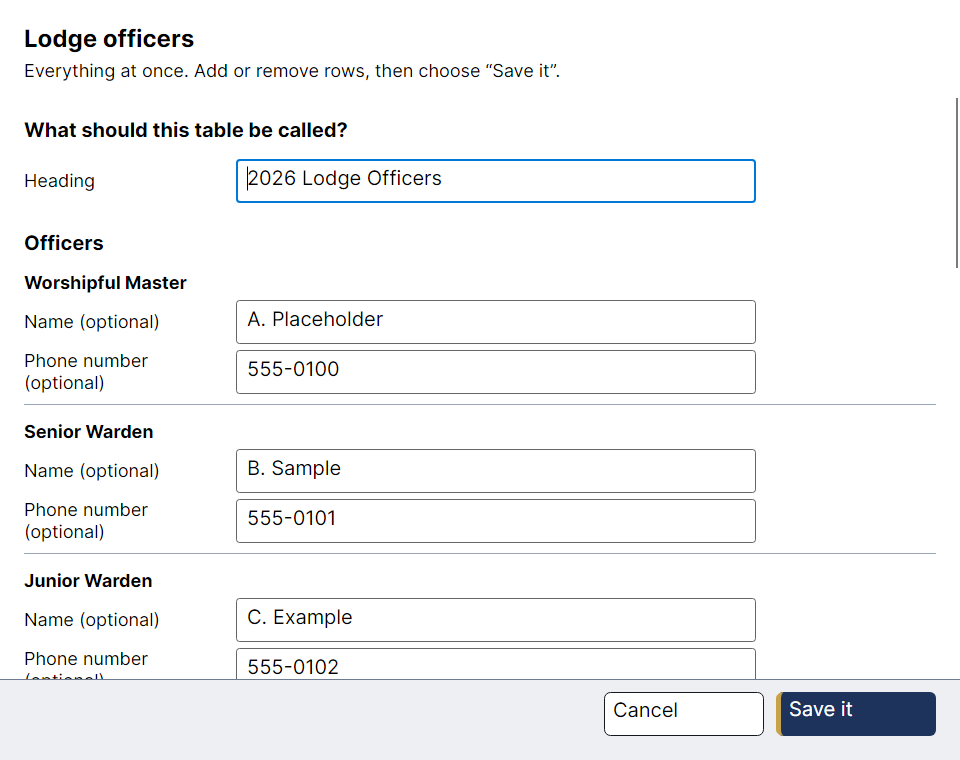
Once a list exists the wizard is not the only way back into it. The same information can be edited all at once, in rows big enough to read.
Photographs
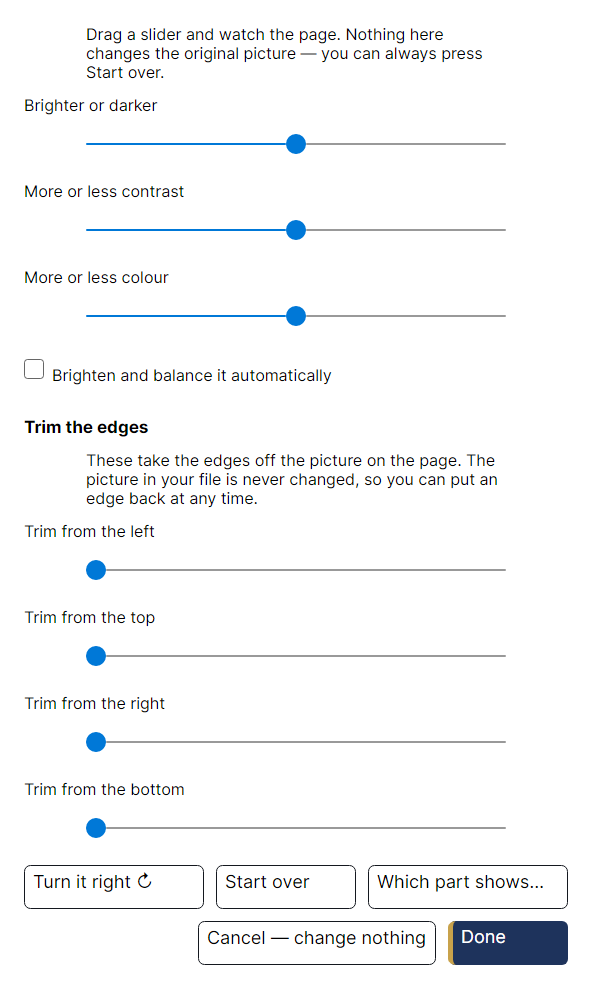
Your original file is never altered. It goes into the newsletter untouched, and every change — crop, straighten, brighten — is a recipe applied when the page is drawn. That is why a picture can be re-cropped from the original months later, and why nothing you do to it here can spoil the photo on your computer.
The PDF
One command produces the file you email to the lodge. It is drawn by the same code that draws the screen, with the fonts embedded and the text selectable, so it opens the same way on whatever the brethren read it on.
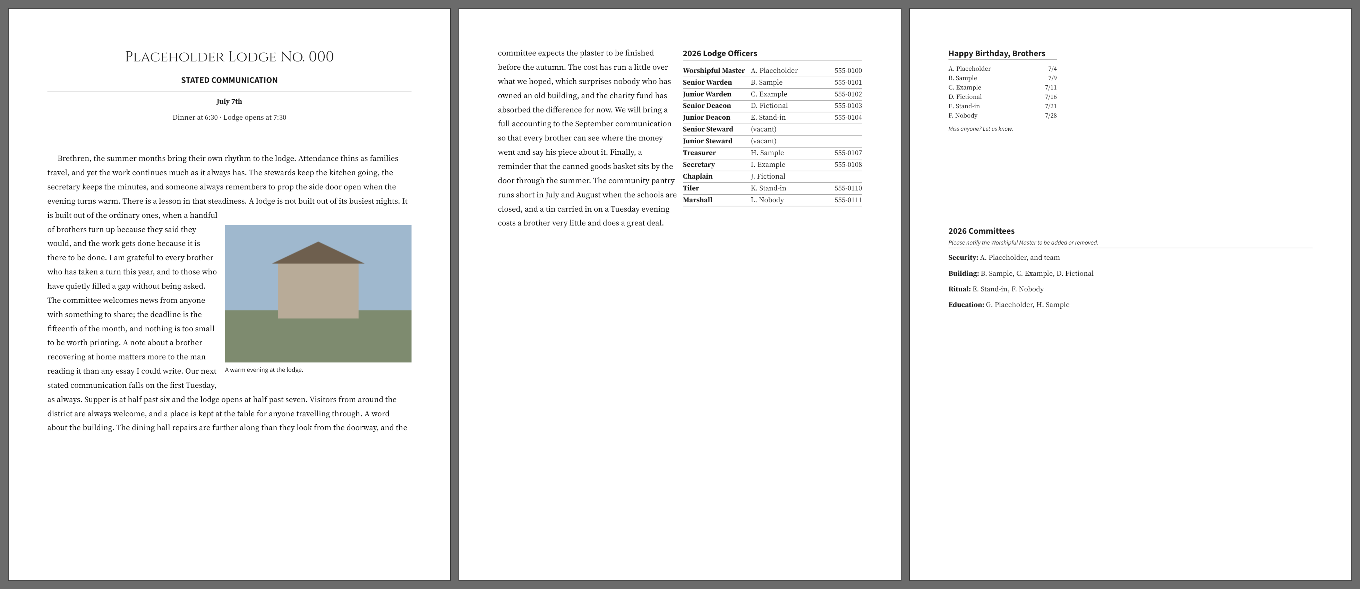
You can see all of this without making anything. Install the program and open Help → Show me an example newsletter. It is a finished issue for a lodge that does not exist, and you can take it apart without harming anything.