Your first newsletter
If nobody has made a newsletter on this computer yet, this is the order it happens in. Set aside an evening for the first one — the months after it are far shorter, because most of what you do here carries forward.
Start from a ready-made layout
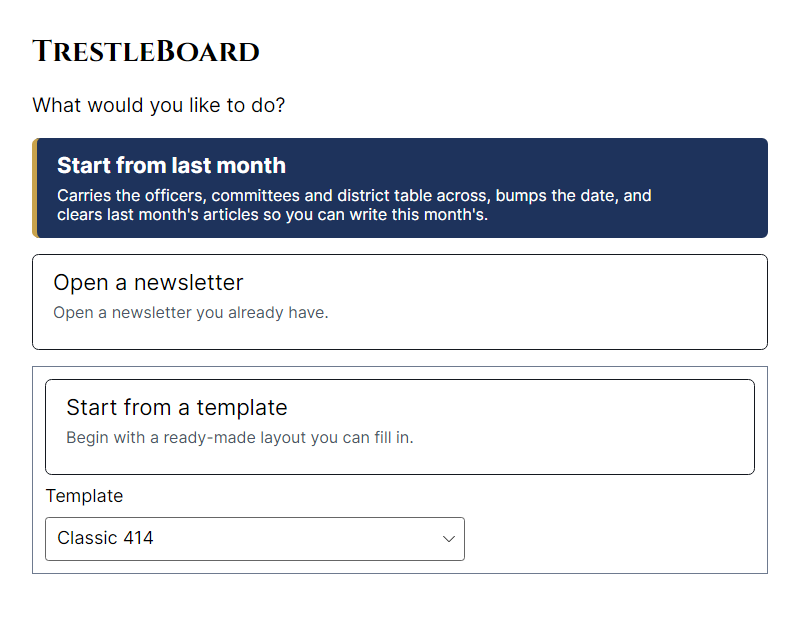
When TrestleBoard opens with nothing to carry forward, it offers three ways to begin. Take Start from a template and choose Classic 414: a cover, an officers page, and a birthdays sidebar, all in place and waiting for your words.
Say which issue it is
The program asks which month and year this newsletter is for, and it asks before anything else, because a great deal follows from the answer: the date on the cover, the file's name, which birthdays belong in it, and which archive Show me last year's looks in. It never guesses from the clock on your computer.
Put your own words in
Click into any block of writing and type. The article boxes start out holding a reminder of what goes in them — those words are not decoration, and the program will tell you later if you have left one of them on the page.
If you want a new box, choose something on the page first so the program knows where to put it, then Add a box for writing (Ctrl+Shift+T).
Fill in the officers
Do not type the officers table as a table. Choose Lodge officers from the panel and answer one question per screen. If the address book already has your members in it, the wizard offers their names instead of asking you to spell them — see the address book.
The birthday list, the committees and the district calendar work the same way, and the last screen of each reads back what it is about to write.
Add a photograph
Insert a picture… (Ctrl+Shift+P), then Make the writing flow around it (Ctrl+Shift+W) if it belongs inside an article. There is more on photographs, including the one button that fixes a dark hall shot.
Have it looked over
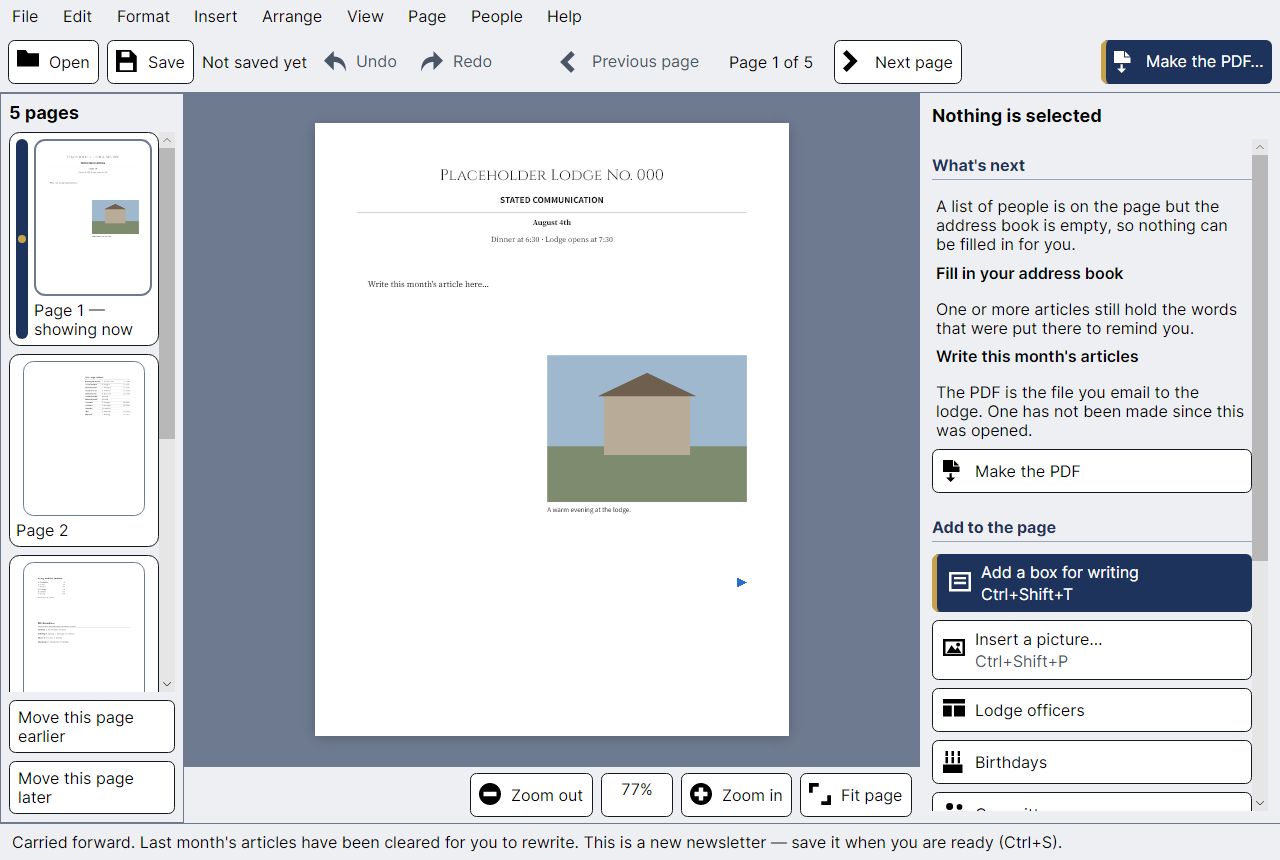
Look it over with me… walks the newsletter and lists what looks unfinished: writing that has run out of room, a reminder still sitting where an article should be, a birthday list that belongs to a different month. Each finding takes you to the place it is talking about.
Save it, then make the PDF
Ctrl+S keeps your work in its own file, ending in .tboard. That file is the newsletter itself, with every photograph inside it — copy it to another computer and it opens there complete.
Make the PDF… (Ctrl+E) produces the file you email round. It is named after the issue you set at the beginning, so it arrives in the lodge's inbox saying what it is.
Nothing you have done is permanent. Undo (Ctrl+Z) reaches back through everything in this list, including moving a photograph and changing the newsletter's typeface. And your work is saved for you every minute regardless — see when something goes wrong.